
Overview
The Reports tab is your central place to generate, track, and download reports about your organization's roster in Careforce. Instead of exporting a fixed file, you choose the report you need, narrow it down with filters, and download it once it's ready.
With the Reports tab, you can:
- Generate reports on demand, with filters such as state, status, provider type, and date range
- See every report your organization has requested, along with who requested it and when
- Check a report's progress and download it when it's complete
Who can use this: Enterprise administrators.
Available reports
The report types you see depend on the Zivian products your organization uses. Reports currently available include:
|
Report |
What it includes |
|---|---|
|
Roster collaborations |
Collaborations across your roster |
|
Roster licenses |
Licenses held by providers on your roster |
|
Roster last active |
When providers on your roster were last active in Zivian |
|
Attestations |
One row per attestation |
|
Attestation responses |
One row per answered attestation question |
|
Elevate chart reviews |
One row per chart, elevate reviewed charts |
Date ranges are always calculated from the day the report runs. For example, "Last 3 months" on 2026-09-21, it covers the three months before the request date covering 2026-06-21 → 2026-09-21, not a fixed calendar period.
Generate a report
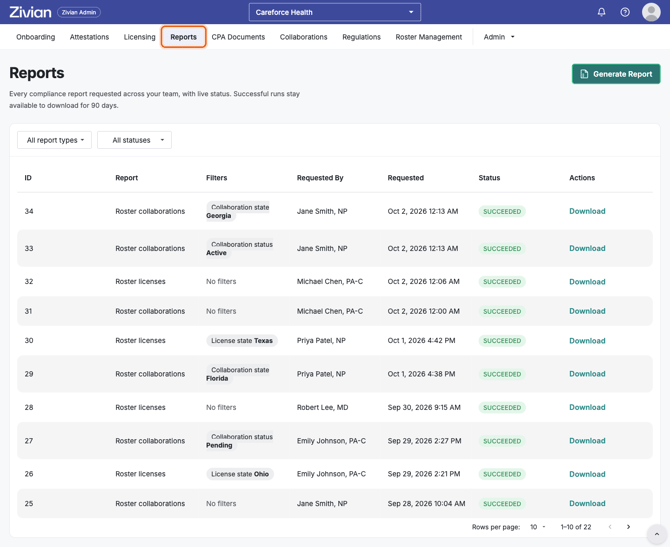
1. Select Reports in the main navigation bar.
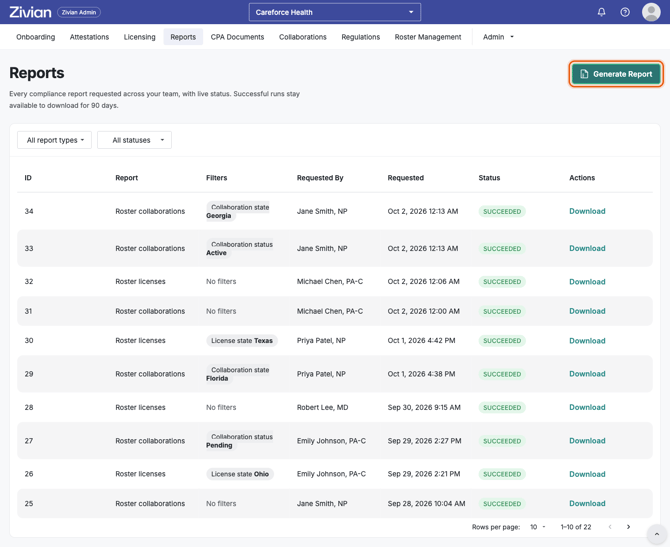
2. Click Generate report button.
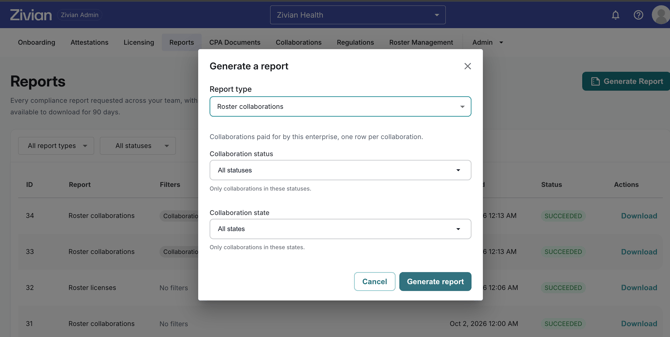
3. Choose a report type from the dropdown.
4. Set the filters you want. Some filters are pre-filled with a default (for example, attestation reports default to the last 12 months and MD/DO providers). Clear any filter you don't need.
5. Click Generate report to submit.
Your report appears at the top of the reports table right away. Reports are prepared in the background, so you can keep working in Careforce or leave the page while it runs.
Generate a report from the Collaborations tab
If you're already viewing collaborations, you can create a report without re-entering your filters:
- On the Collaborations tab, filter the table by state and status as needed (for example, Active collaborations in Georgia).
- Click Generate report.
- The report window opens with Roster collaborations selected and your current state and status filters already filled in. Adjust if needed, then submit.
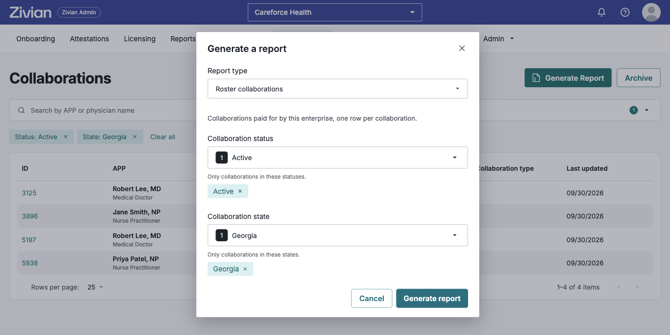
The report is added to the Reports tab like any other.
Track and download reports
The reports table on the Reports tab shows every report requested by your organization.
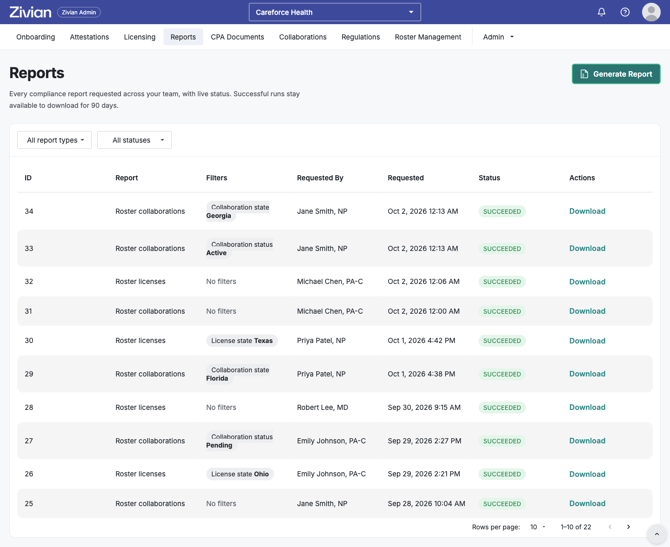
|
Column |
Description |
|---|---|
|
ID |
A unique ID for the report. Include it when contacting support about a specific report. |
|
Report |
The report type |
|
Filters |
The filters applied when the report was requested. If more than four filters were used, hover over the +N label to see the rest. Reports with no filters show "No filters." |
|
Requested by |
The admin who requested the report |
|
Requested |
The date and time the report was requested |
|
Status |
Where the report is in the process (see below) |
|
Download |
Downloads the completed report as a CSV file |
You can narrow the table using the report type and status dropdowns.
Report statuses
|
Status |
What it means |
|---|---|
|
Pending |
The report has been requested and is waiting to start. |
|
Running |
The report is being prepared. Check back shortly. |
|
Succeeded |
The report is ready to download. |
|
Failed |
The report couldn't be completed. Generate it again; if it fails a second time, contact support with the report ID. |
You won't receive an email or notification when a report finishes, so return to the Reports tab to check its status.
Good to know
- Reports are shared across your organization. Every enterprise admin in your organization can see and download any report in the table, regardless of who requested it.
- Reports are available for a limited time. Completed reports can be downloaded for 90 days after they're generated. After that, the file is removed and the Download button is disabled. Generate a new report if you need the data again.
- Each report is a snapshot. A report reflects your data at the time it ran. Changes made afterward won't appear until you generate a new report.
- Empty reports are still valid. If no records match your filters, the report will complete successfully and contain column headers only. Try adjusting your filters.
- Reports contain sensitive information. Store and share downloaded files according to your organization's data-handling policies.