
Overview
Reports lets you generate and download your own attestation records directly from your Zivian account. You no longer need to contact Zivian to request a copy.
With Reports, you can:
-
Generate an attestations report on demand for a date range you choose
-
Track the status of reports you've requested
-
Download completed reports as a CSV file
Who can use this: physicians with a Zivian account, including independent and physicians who work with one or more organizations.
Available reports
|
Report |
What it includes |
Filters |
|---|---|---|
|
Attestations |
One row per attestation |
Date range (defaults to last 12 months) |
|
Attestation responses |
One row per answered attestation question |
Date range (defaults to last 12 months) |
Date ranges are calculated from the day the report runs. For example, "Last 3 months" covers the three months leading up to the day you generate the report.
What's included in your report
Your report covers both sides of each of your collaborations:
-
Attestations you completed
-
Attestations your collaborating provider completed about you, if any
Reports include records from every organization you've worked with, as well as attestations not tied to any organization. The Enterprise Name column shows the organization for each record and is blank for attestations with no organization (for example, if you practice independently).
Reports include attestations in every status, including ones that are not yet complete.
Generate a report
-
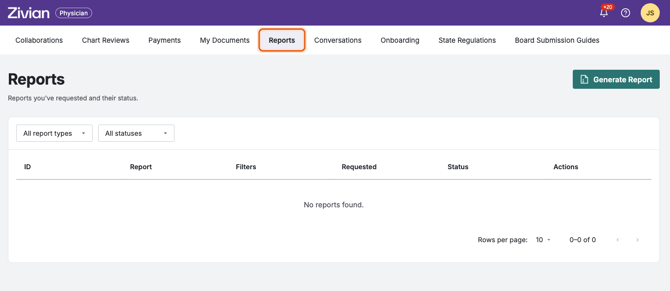
Sign in to Zivian and open Reports tab. Hint: as the web page is adjustable to your screen size, this tab might be under “More”.
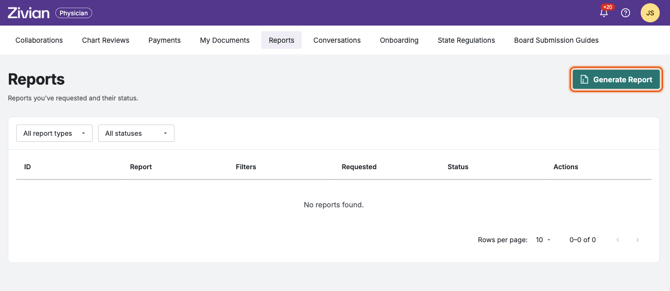
2. Click Generate report.
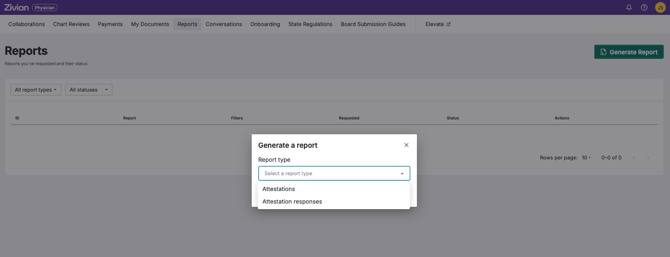
3. Choose Attestations or Attestation responses.
4. Select a date range, or keep the default of the last 12 months.
5. Click Generate report to submit.
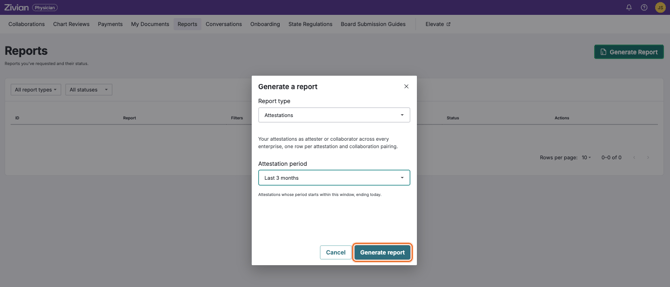
Your report appears at the top of your reports list right away. Reports are prepared in the background, so you can keep using Zivian or leave the page while it runs.
Track and download reports
The Reports page lists every report you've requested, newest first.
|
Column |
Description |
|---|---|
|
ID |
A unique ID for the report. Include it when contacting support. |
|
Report |
The report type |
|
Filters |
The date range used for the report |
|
Requested |
The date and time you requested the report |
|
Status |
Where the report is in the process (see below) |
|
Download |
Downloads the completed report as a CSV file |
Report statuses
|
Status |
What it means |
|---|---|
|
Pending |
Your report has been requested and is waiting to start. |
|
Running |
Your report is being prepared. Check back shortly. |
|
Succeeded |
Your report is ready to download. |
|
Failed |
The report couldn't be completed. Generate it again; if it fails a second time, contact support with the report ID. |
You won't receive an email or notification when a report finishes, so return to the Reports page to check its status.
Good to know
- Your reports are private to you. Only you can see and download the reports you generate. Organizations you work with cannot see them.
- Reports are available for a limited time. Completed reports can be downloaded for 90 days. After that, the file is removed and the Download button is disabled. Generate a new report if you need the data again.
- Each report is a snapshot. It reflects your records at the time it ran. Generate a new report to see later changes.
- Empty reports are still valid. If you have no attestations in the selected date range, the report will complete with column headers only. Try a longer date range.
- Reports contain sensitive information. Store and share downloaded files securely.